Oculon vs Excel
Keep Excel. Connect the plan. Excel gives finance the flexibility to model, explore and pressure-test ideas. Oculon works alongside it, syncing with your workbooks and keeping planning connected as the business changes.
The questions to ask when planning starts to outgrow the spreadsheet
Question
Excel
Oculon
How does data reach the plan?
Data can be imported, queried, linked or entered across workbooks and sources.
Financial and operational sources connect directly to the planning environment.
What happens when an assumption changes?
Formulas recalculate, but assumptions repeated across files and downstream outputs still need to stay aligned.
Reusable drivers and formulas flow through the connected model.
How are scenarios managed?
Flexible, but often managed through tabs, copies or separately maintained versions.
Branch, compare and merge scenarios within the model.
How do multiple people work on the plan?
Co-authoring is possible, but planning context can become distributed across workbooks, comments and separate outputs.
Models, data, dashboards and permissions stay in one shared workspace.
How do you know what changed?
Version history exists, but understanding changes across the planning process depends on workbook structure and team discipline.
Versions, checkpoints and before-and-after diffs stay attached to the model.
How does reporting stay aligned?
Reports and presentations can be linked, but downstream outputs may still need to be refreshed and maintained.
Dashboards and reporting stay connected to the underlying models and data.
How flexible is modelling?
Highly flexible and familiar for ad hoc modelling and analysis.
Custom variables, formulas, drivers, dimensions and hierarchies built for connected financial planning.
Oculon supports connected modelling, scenario branching and merging, shared reporting, collaboration and model versioning.
Signs you’ve outgrown Excel for planning
The spreadsheet may still work. The process around it is what starts to slow finance down.
Reduce the work between change and decision.
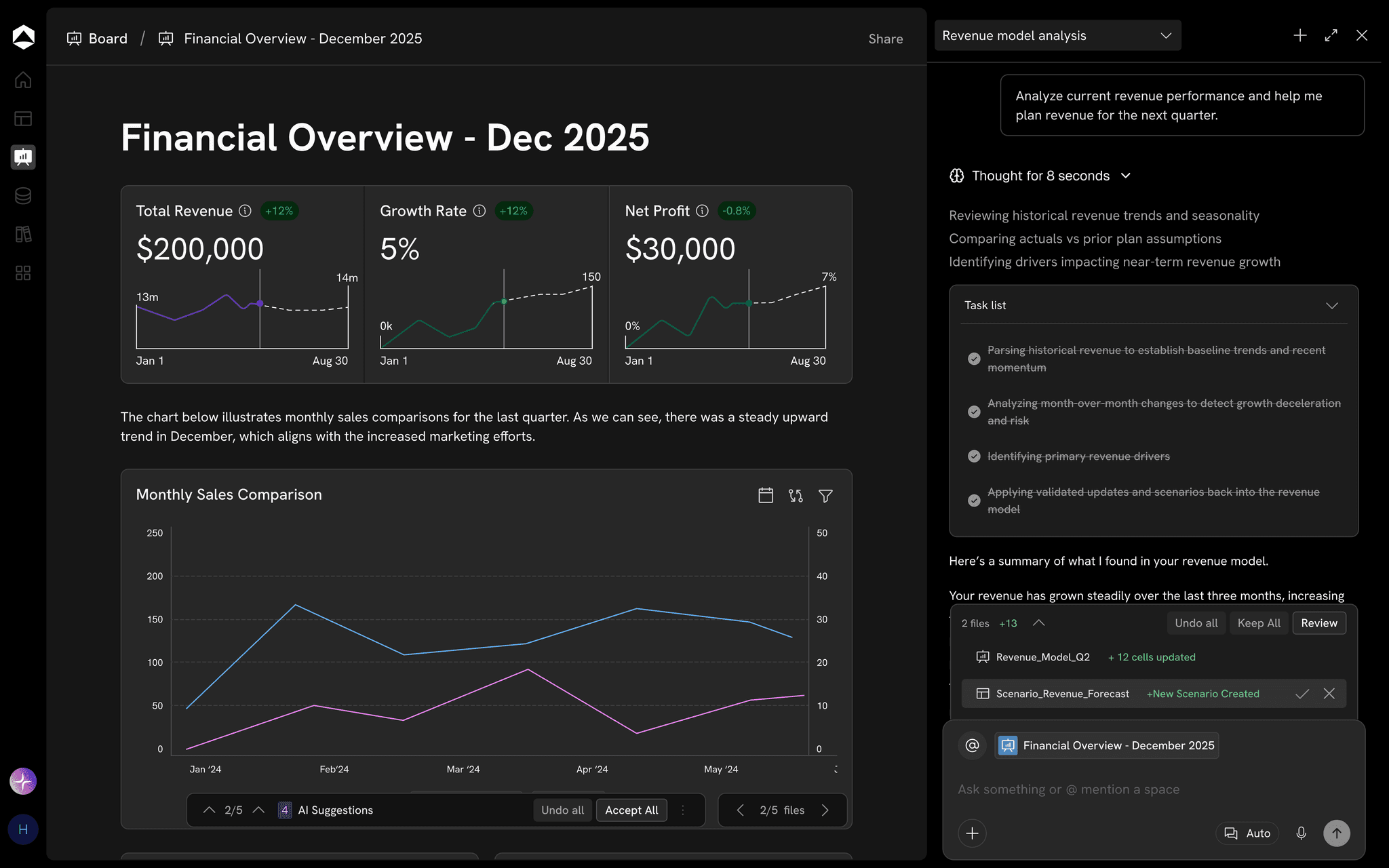
Oculon brings models, data and reporting into the same environment, with real-time collaboration across models, databases and dashboards.
How Excel works with Oculon
Keep working in the spreadsheet your team knows. Oculon keeps it connected to the plan.
01
Import
Bring your models in
Import existing Excel models and data, so you start from the work you already have rather than a blank page.
02
Live sync
Work live from Excel
Use the Oculon add-in to pull live model data into a workbook and send changes back, with two-way sync.
03
Export
Take it back out any time
Export models, scenarios and reports to Excel for ad hoc analysis, sharing or one-off work.
Excel stays where it’s strongest. Oculon keeps the model, data and reporting connected behind it.
Questions about moving beyond Excel.
No. Excel remains useful for ad hoc analysis, exploration and one-off modelling, and it works with Oculon: import existing models, sync live data through the add-in and export back whenever you need to. Oculon handles the planning workflows that benefit from connected data, shared models, scenarios, governance and reporting.
Can my team keep using Excel?
What happens to our existing Excel models?
Can Oculon give us the same modelling flexibility as Excel?
How does Oculon handle scenarios?
What happens when someone changes the model?
Can teams outside finance participate in planning?
Oculon vs Excel
Keep Excel. Connect the plan. Excel gives finance the flexibility to model, explore and pressure-test ideas. Oculon works alongside it, syncing with your workbooks and keeping planning connected as the business changes.
The questions to ask when planning starts to outgrow the spreadsheet
Question
Excel
Oculon
How does data reach the plan?
Data can be imported, queried, linked or entered across workbooks and sources.
Financial and operational sources connect directly to the planning environment.
What happens when an assumption changes?
Formulas recalculate, but assumptions repeated across files and downstream outputs still need to stay aligned.
Reusable drivers and formulas flow through the connected model.
How are scenarios managed?
Flexible, but often managed through tabs, copies or separately maintained versions.
Branch, compare and merge scenarios within the model.
How do multiple people work on the plan?
Co-authoring is possible, but planning context can become distributed across workbooks, comments and separate outputs.
Models, data, dashboards and permissions stay in one shared workspace.
How do you know what changed?
Version history exists, but understanding changes across the planning process depends on workbook structure and team discipline.
Versions, checkpoints and before-and-after diffs stay attached to the model.
How does reporting stay aligned?
Reports and presentations can be linked, but downstream outputs may still need to be refreshed and maintained.
Dashboards and reporting stay connected to the underlying models and data.
How flexible is modelling?
Highly flexible and familiar for ad hoc modelling and analysis.
Custom variables, formulas, drivers, dimensions and hierarchies built for connected financial planning.
Oculon supports connected modelling, scenario branching and merging, shared reporting, collaboration and model versioning.
Signs you’ve outgrown Excel for planning
The spreadsheet may still work. The process around it is what starts to slow finance down.
Reduce the work between change and decision.
Oculon brings models, data and reporting into the same environment, with real-time collaboration across models, databases and dashboards.
How Excel works with Oculon
Keep working in the spreadsheet your team knows. Oculon keeps it connected to the plan.
01
Import
Bring your models in
Import existing Excel models and data, so you start from the work you already have rather than a blank page.
02
Live sync
Work live from Excel
Use the Oculon add-in to pull live model data into a workbook and send changes back, with two-way sync.
03
Export
Take it back out any time
Export models, scenarios and reports to Excel for ad hoc analysis, sharing or one-off work.
Excel stays where it’s strongest. Oculon keeps the model, data and reporting connected behind it.
Questions about moving beyond Excel.
No. Excel remains useful for ad hoc analysis, exploration and one-off modelling, and it works with Oculon: import existing models, sync live data through the add-in and export back whenever you need to. Oculon handles the planning workflows that benefit from connected data, shared models, scenarios, governance and reporting.
Can my team keep using Excel?
What happens to our existing Excel models?
Can Oculon give us the same modelling flexibility as Excel?
How does Oculon handle scenarios?
What happens when someone changes the model?
Can teams outside finance participate in planning?
Oculon vs Excel
Keep Excel. Connect the plan. Excel gives finance the flexibility to model, explore and pressure-test ideas. Oculon works alongside it, syncing with your workbooks and keeping planning connected as the business changes.
The questions to ask when planning starts to outgrow the spreadsheet
How does data reach the plan?
Data can be imported, queried, linked or entered across workbooks and sources.
Financial and operational sources connect directly to the planning environment.
What happens when an assumption changes?
Formulas recalculate, but assumptions repeated across files and downstream outputs still need to stay aligned.
Reusable drivers and formulas flow through the connected model.
How are scenarios managed?
Flexible, but often managed through tabs, copies or separately maintained versions.
Branch, compare and merge scenarios within the model.
How do multiple people work on the plan?
Co-authoring is possible, but planning context can become distributed across workbooks, comments and separate outputs.
Models, data, dashboards and permissions stay in one shared workspace.
How do you know what changed?
Version history exists, but understanding changes across the planning process depends on workbook structure and team discipline.
Versions, checkpoints and before-and-after diffs stay attached to the model.
How does reporting stay aligned?
Reports and presentations can be linked, but downstream outputs may still need to be refreshed and maintained.
Dashboards and reporting stay connected to the underlying models and data.
How flexible is modelling?
Highly flexible and familiar for ad hoc modelling and analysis.
Custom variables, formulas, drivers, dimensions and hierarchies built for connected financial planning.
Oculon supports connected modelling, scenario branching and merging, shared reporting, collaboration and model versioning.
Signs you’ve outgrown Excel for planning
The spreadsheet may still work. The process around it is what starts to slow finance down.
Reduce the work between change and decision.
Oculon brings models, data and reporting into the same environment, with real-time collaboration across models, databases and dashboards.
How Excel works with Oculon
Keep working in the spreadsheet your team knows. Oculon keeps it connected to the plan.
01
Import
Bring your models in
Import existing Excel models and data, so you start from the work you already have rather than a blank page.
02
Live sync
Work live from Excel
Use the Oculon add-in to pull live model data into a workbook and send changes back, with two-way sync.
03
Export
Take it back out any time
Export models, scenarios and reports to Excel for ad hoc analysis, sharing or one-off work.
Excel stays where it’s strongest. Oculon keeps the model, data and reporting connected behind it.
Questions about moving beyond Excel.
No. Excel remains useful for ad hoc analysis, exploration and one-off modelling, and it works with Oculon: import existing models, sync live data through the add-in and export back whenever you need to. Oculon handles the planning workflows that benefit from connected data, shared models, scenarios, governance and reporting.
Can my team keep using Excel?
What happens to our existing Excel models?
Can Oculon give us the same modelling flexibility as Excel?
How does Oculon handle scenarios?
What happens when someone changes the model?
Can teams outside finance participate in planning?